Repair Windows Without Starting Over: The In-Place Upgrade
When DISM and SFC can’t fix it, an in-place upgrade rebuilds the entire Windows system folder from clean installation media while keeping your apps, files and settings. It’s the closest thing to a fresh install, without the reinstall.
When Windows starts misbehaving, with failed updates, corrupted system files or errors that survive every fix, the usual last resort is to wipe the drive and reinstall. Before you do that, try an in-place upgrade, also called a repair install. It reinstalls Windows on top of itself from official installation media and keeps your apps, files and settings.
What an in-place upgrade actually does
Windows Setup builds a brand-new C:\Windows system folder from the installation media, moves your apps, files and settings into it, and sets the previous installation aside as C:\Windows.old. Every system file comes from a clean copy, and the clutter that builds up over years of updates stays behind: superseded versions of system components, old update caches and logs. Windows normally keeps superseded components for a while so updates can be rolled back (Microsoft Learn: Clean Up the WinSxS Folder). A rebuilt system folder starts without them.
Depending on the media you use, it runs either as an upgrade to a newer build or as a reinstall of the build you already have. Both rebuild the system folder the same way and give you the same benefits.
Start with the built-in repair tools
For a quick fix, run Windows’ own repair commands from an elevated Terminal first:
DISM /Online /Cleanup-Image /RestoreHealth
sfc /scannow
DISM repairs the Windows component store, the local source Windows uses for clean copies of system files (Microsoft Learn: Repair a Windows Image). System File Checker then scans every protected system file and replaces incorrect versions (Microsoft Learn: sfc). These tools fix corruption, but they only repair what’s already there. They don’t clear out years of accumulated clutter, and they can come up short when the damage runs deep. Repair commands only get you so far. An in-place upgrade gets you farther.
A shortcut on Windows 11: Settings › System › Recovery › Fix problems using Windows Update › Reinstall now performs a similar repair reinstall of the version you’re running, downloaded through Windows Update, with no ISO needed. It requires Windows 11 version 22H2 or later with the February 2024 optional update or newer (Microsoft Support: Fix issues by reinstalling the current version of Windows). The ISO method below doesn’t need those updates, and it can also move you to a newer build.
Before you start
- Back up anything important. An in-place upgrade is designed to keep everything, but no system-level repair is risk-free.
- Use matching media. To keep your apps and files, the media must match your installation’s language and architecture, and be the same or a newer version of Windows. If Setup won’t offer to keep your apps and files, mismatched media is the usual cause.
- Leave plenty of free space. Setup needs room for the new system folder while it keeps the old one.
- Have your BitLocker recovery key handy if the drive is encrypted, and plug laptops into power.
How to run it
- Download the installation media. On Microsoft’s Windows 11 download page, use the Media Creation Tool and choose ISO file, or download the disk image (ISO) directly from the same page. The tool needs a 64-bit PC running Windows 10 version 2004 or later, and it only creates media for x64 processors.
- Mount the ISO. Right-click the file and choose Mount. Windows opens it as a virtual DVD drive that you can browse in File Explorer.
- Run Setup from within Windows. Open the drive and run
setup.exe. Booting from the media instead only offers a clean install. - Keep everything. Follow the prompts, and when Setup asks what to keep, choose Keep personal files and apps.
- Let it finish. The PC restarts several times along the way. Afterwards, run Windows Update and check that your apps and devices work.
Before and after on my PC
Here’s what an in-place upgrade did on one of my own machines. This one also moved the PC to a newer Windows 11 build.
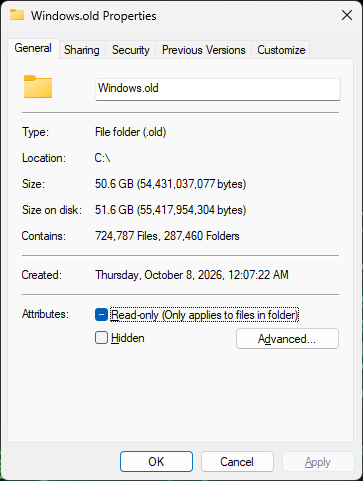
C:\Windows.old: the previous installation. Besides the old Windows folder, it holds Setup’s copies of Program Files, ProgramData and user folders, so its totals cover more than Windows itself.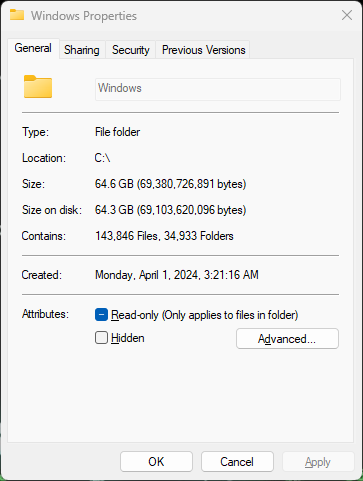
C:\Windows.Side by side, here are the totals from those two Properties windows:
Previous installation (C:\Windows.old) | New C:\Windows | Change | |
|---|---|---|---|
| Folders | 287,460 | 34,933 | −88% |
| Files | 724,787 | 143,846 | −80% |
| Size | 50.6 GB | 64.6 GB | +14.0 GB |
| Size on disk | 51.6 GB | 64.3 GB | +12.7 GB |
The rebuilt system folder holds far fewer folders and files. Part of that drop is old copies of apps and user folders, since C:\Windows.old holds the whole previous installation (see the caption above); the rest is accumulated clutter that didn’t make the trip. That’s less for Windows servicing, antivirus scans and backups to work through.
Both size figures went up, by about 13–14 GB. Size is a poor measure of clutter here, though: File Explorer counts a hard-linked file once for every place it appears, so its figures for the Windows folder overstate what’s actually on disk (Microsoft Learn: Determine the Actual Size of the WinSxS Folder). The file and folder counts are the better yardstick.
Cleaning up afterwards
Keep C:\Windows.old until you’re sure everything works. It’s what Windows uses if you choose to go back under Settings › System › Recovery, and by default that option lasts 10 days (Microsoft Learn: DISM Operating System Uninstall Command-Line Options). To reclaim the space sooner, go to Settings › System › Storage › Temporary files and select Previous Windows installation(s).
The bottom line
Repair commands fix individual broken files. An in-place upgrade replaces the whole system folder with a clean one, which is as close as you can get to a fresh install without losing your apps, files and settings. Make it your next step before you reach for a full wipe.
Microsoft documentation
- Repair a Windows Image (DISM)
- sfc (System File Checker)
- Clean Up the WinSxS Folder
- Determine the Actual Size of the WinSxS Folder
- DISM Operating System Uninstall Command-Line Options
- Fix issues by reinstalling the current version of Windows (Microsoft Support)
- Download Windows 11 (Media Creation Tool and ISO)